 Why Z
Why ZProject management
00:00 Why you need project management + overview of the approach 00:24 Long-cycle project system 02:42 Daily task system 04:29 Next episode preview
Related code: project-template 、task-template、try、daily Related videos: 001 - Auto-carry over yesterday’s tasks 、002 - Auto-archiving templates 、003 - Troubleshooting copy code
content
The scariest part of running a project isn’t having a lot of tasks. It’s opening your computer the next day and burning half the morning just trying to remember where you left off. So I built a “project execution tracking system.” It has two modules:
- Long-cycle project management
- Daily task system One drives long-term progress; the other handles what to do today.
Part 1: Long-cycle task system
Its basic structure: the top layer is a main project, and a main project can be split into many subtasks.
A subtask isn’t just a to-do list item — it has one key design: each subtask can record multiple attempts — what you did, why you didn’t (if you didn’t), and what you were thinking at the time.
That way, no matter how long it’s been since you opened it, you can see where you stopped last time and what to do next.
Example: create a project called “Demo” using the project template. It auto-fills some metadata based on the template, and you can add or remove these fields to suit your own needs.
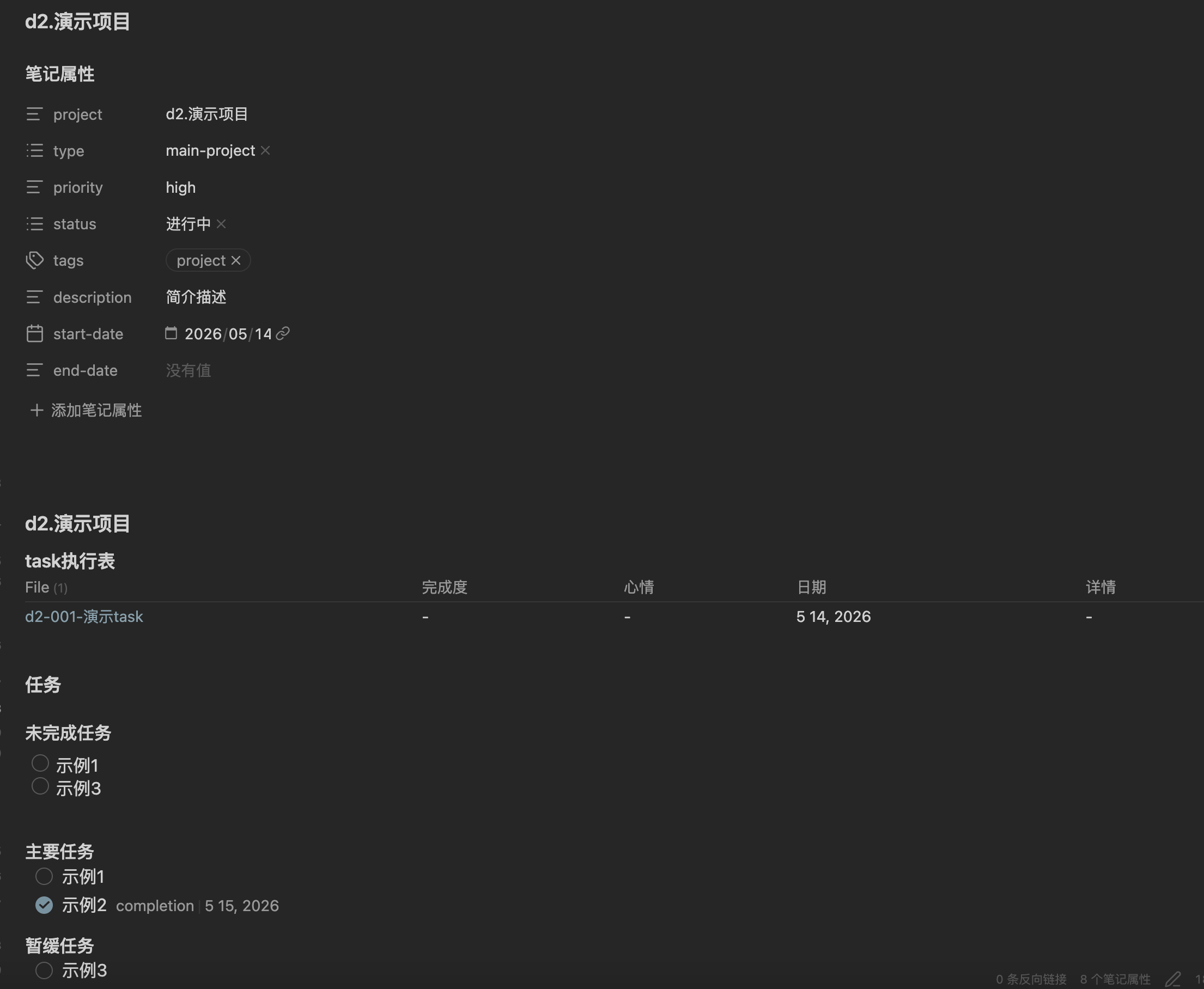
Once the project is created, add a subtask to it.
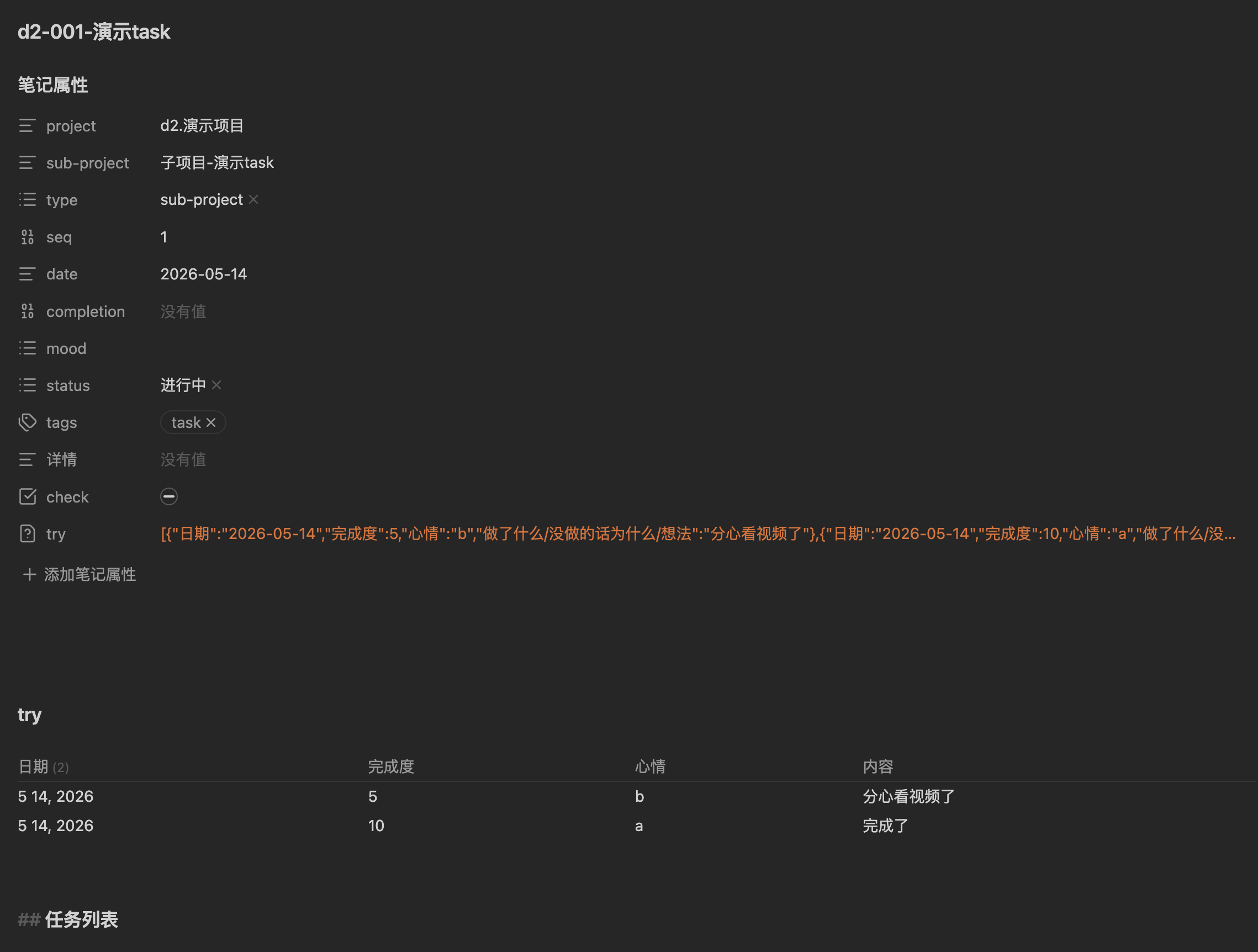
Using the task template, after you fill in the project type and the task title, the project name, title, and number are filled in automatically — no need to write them by hand.
A “try” is used to record the execution process.
By inserting the try template you can record quickly; once you fill in the details and save, the try automatically appears in the task timeline.
If your first attempt fails, that’s fine.
I can keep recording the second attempt, until the task is actually done.
This makes the task’s full lifecycle clear — what you did the first time, where you got stuck, and how you finished it the second time, all at a glance.
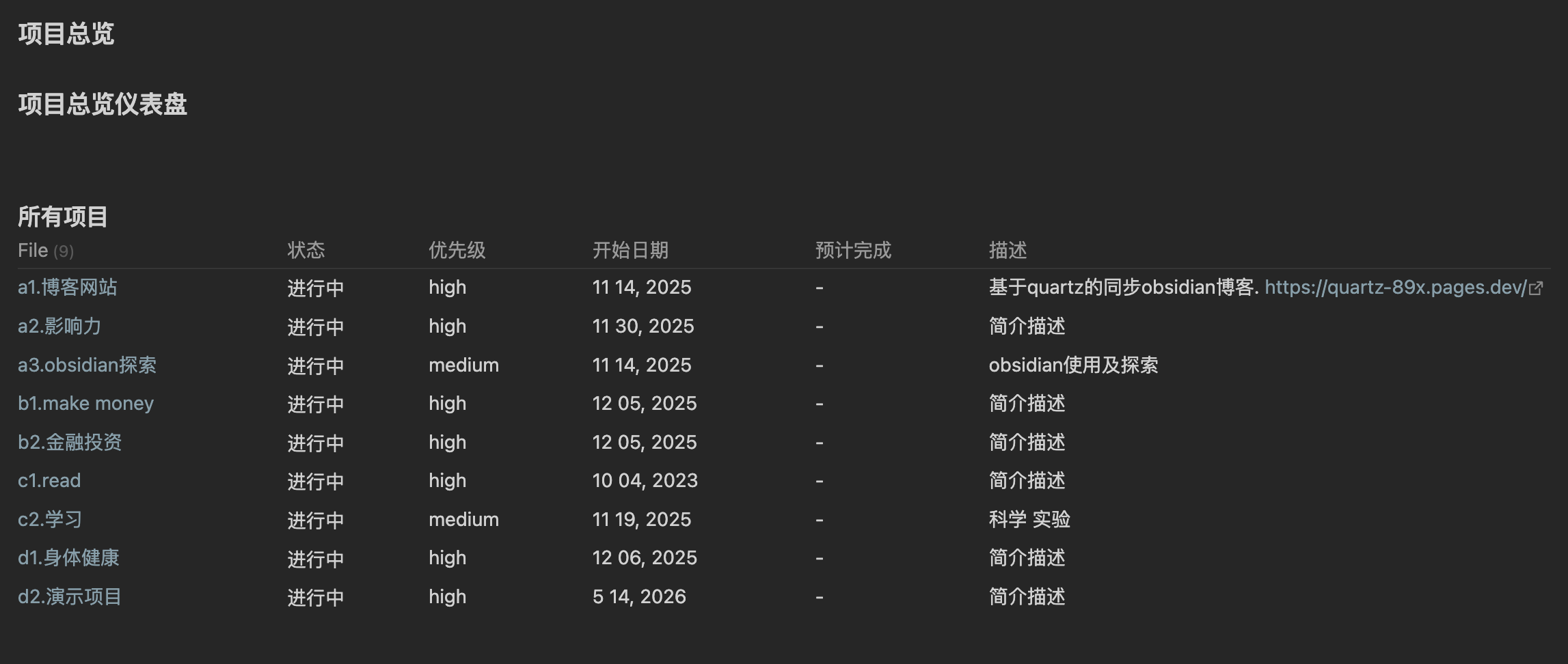
Besides the single-task view, there are two summary pages:
Project Overview — all main projects listed together, with status and progress.
Task Overview — all subtasks aggregated, filterable by project, with stats like completion rate.
Part 2: Daily planning system
Some might ask: I already have a long-cycle system, so why do I need daily tasks?
The two have different jobs. The long-cycle system manages the project lifecycle and progress, while daily tasks focus on which few things to do today.
The daily note is auto-generated from a template and contains these sections:
- Habit check-in: things you do every day
- Today’s goals: at most three — the highest-priority tasks for the day
- Yesterday’s unfinished: goals you didn’t finish the previous day, rolled in automatically
- Scheduled: pulled from a dedicated planning doc — shows only tasks due today or earlier; future ones don’t appear early
- Today’s records: jot down stray ideas or tasks as they come up
- Carry-over goals: aggregates each day’s “today’s records” to create continuity
- Today’s review / Tomorrow’s goals: filled at the end; tomorrow’s goals automatically show up in tomorrow’s “today’s goals”
I usually set my today’s goals to the 3 most important tasks — more just creates anxiety; fewer lets you focus on actually executing.
Daily tasks can be handled automatically by the template, so when you open a new day you can start right away, with no manual cleanup.
There’s one more piece of task management I didn’t finish — using AI for a weekly summary. I’ll cover that next time.